
Apps · macOS · Productivity
BetterScreenClipper
Screenshot, mark up and record
Fringe Industries, LLC
Screenshots
Click a screenshot to enlarge it.
Description
Grab any part of your screen, add arrows, text and blur in seconds, and paste it anywhere. Record your screen with sound to a video file that plays everywhere.
BetterScreenClipper takes a screenshot, lets you mark it up, and puts it on your clipboard so you can paste it straight into a message, an email or a document. It also records your screen, with sound, to an MP4 video that plays everywhere.
Screenshots
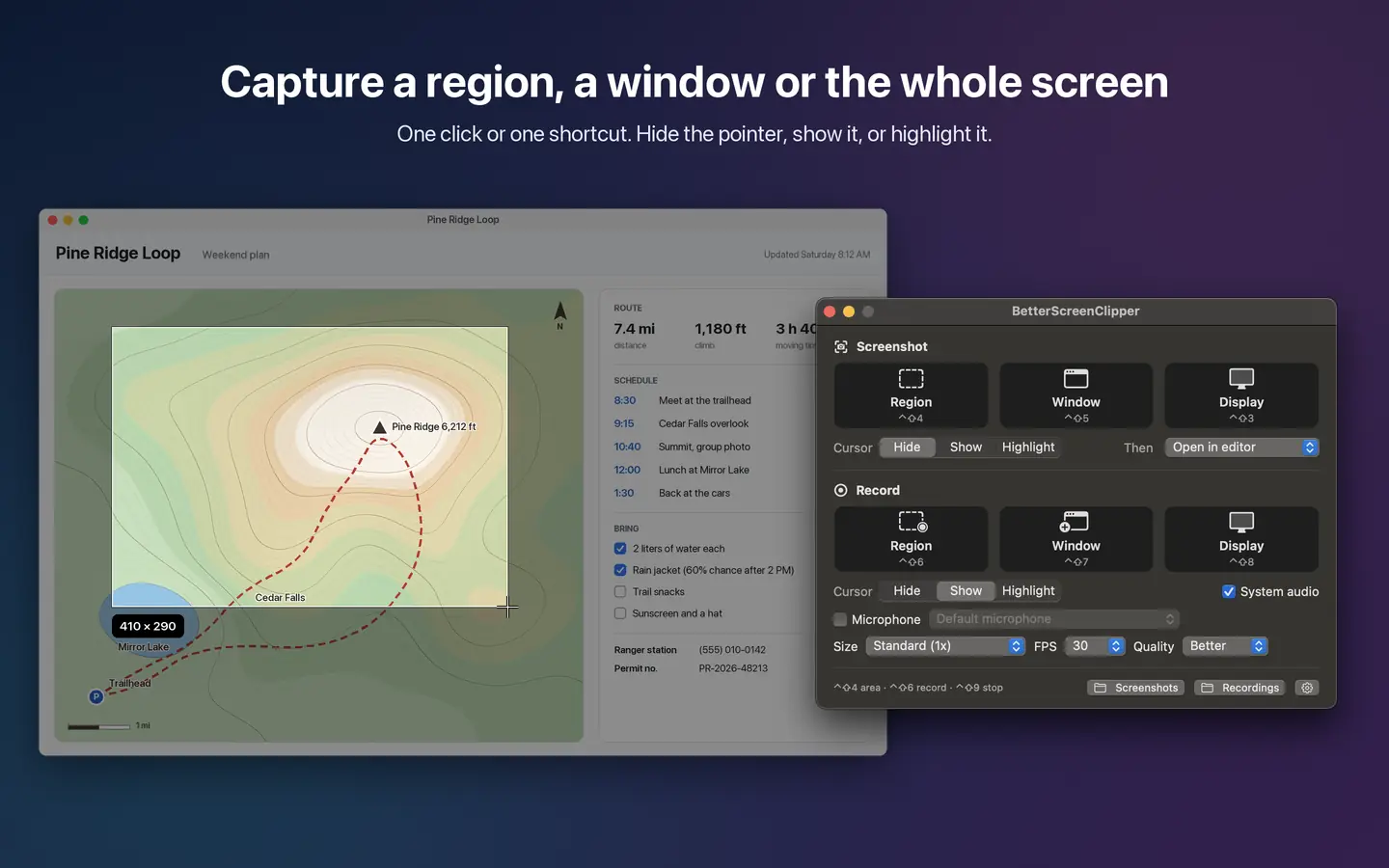
- Capture a region you drag out, a single window, or a whole display.
- The screen dims and shows the size of your selection as you drag. Press Space to switch between picking a region and picking a window. Press Esc to cancel.
- Repeat your last region with one shortcut (Control-Shift-0) or from the menu bar, handy when you capture the same spot again and again.
- Choose what happens next: open the editor, copy to the clipboard, save only, or copy and save.
- Save as PNG or JPEG (with a quality slider).
Mark It Up
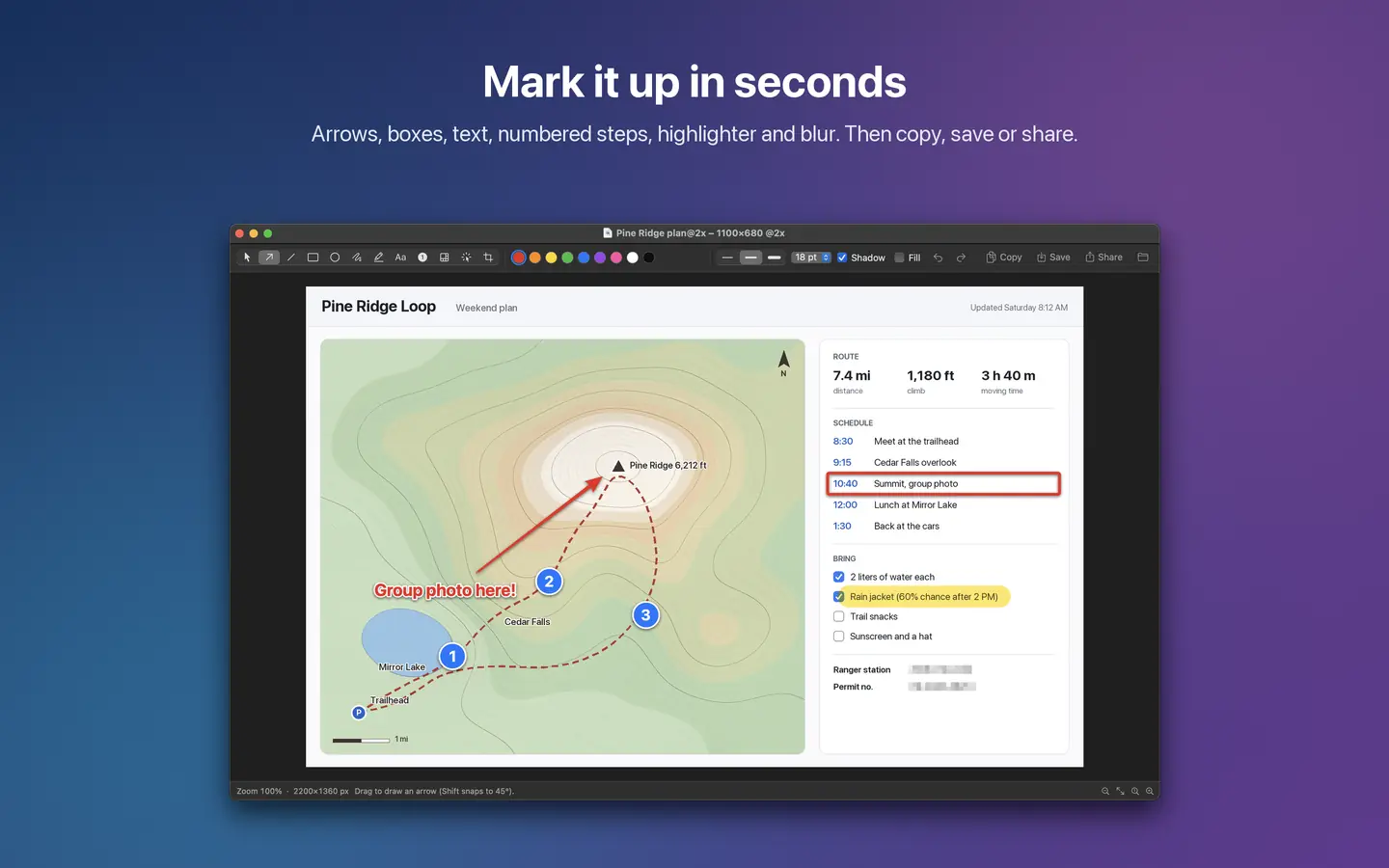
- Arrows, lines, rectangles, ellipses, a pen and a highlighter.
- Text labels and numbered badges for step-by-step instructions.
- Blur hides passwords, account numbers and anything else you do not want to share.
- Spotlight puts a bright halo on a spot to draw the eye.
- Crop to just the part that matters.
- Nine colors, three line thicknesses, adjustable text size, and an optional soft shadow that keeps marks readable on busy backgrounds.
- Move, resize and delete marks, with full undo and redo.
- A single key picks each tool, so you can mark up without reaching for the mouse.
- Copy, Save, Share and Show in Finder buttons in the toolbar; Save As in the File menu.
- Open any existing picture to mark it up: drag it onto the app icon or use Open With.
Screen Recording
- Record a region, a single window, or a whole display.
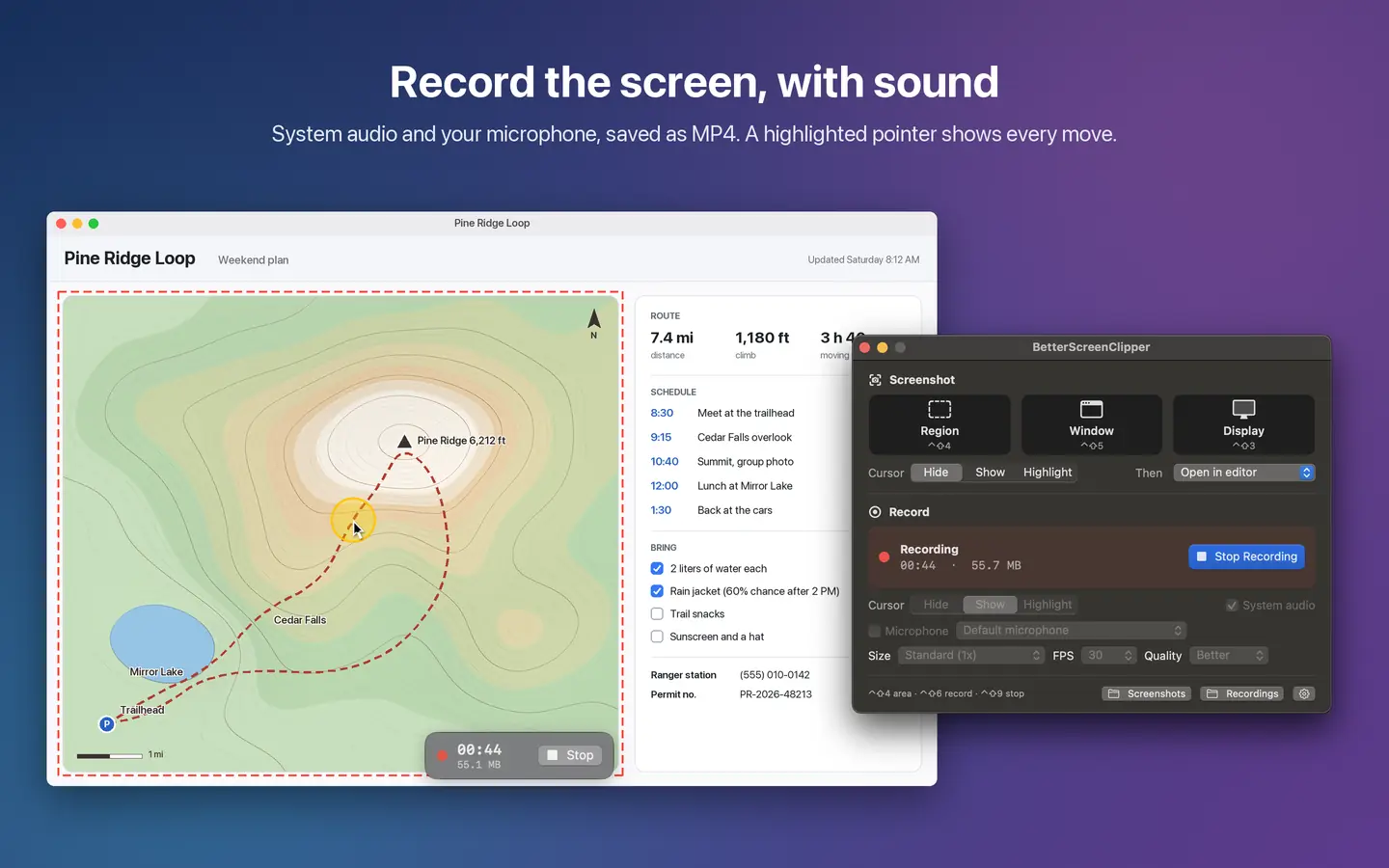
- Include sound from your apps, your microphone, or both, mixed into one audio track. Pick which microphone to use.
- Saves an MP4 video (H.264 and AAC) that opens on nearly any device, or a MOV file if you prefer.
- Choose the size, the frame rate (15, 24, 30 or 60 frames per second) and the quality.
- An optional countdown before recording starts.
- A small floating bar shows the time and file size, with Pause, Resume and Stop. The bar is never part of the video.
- A dashed outline shows which region is being recorded. It is not part of the video either.
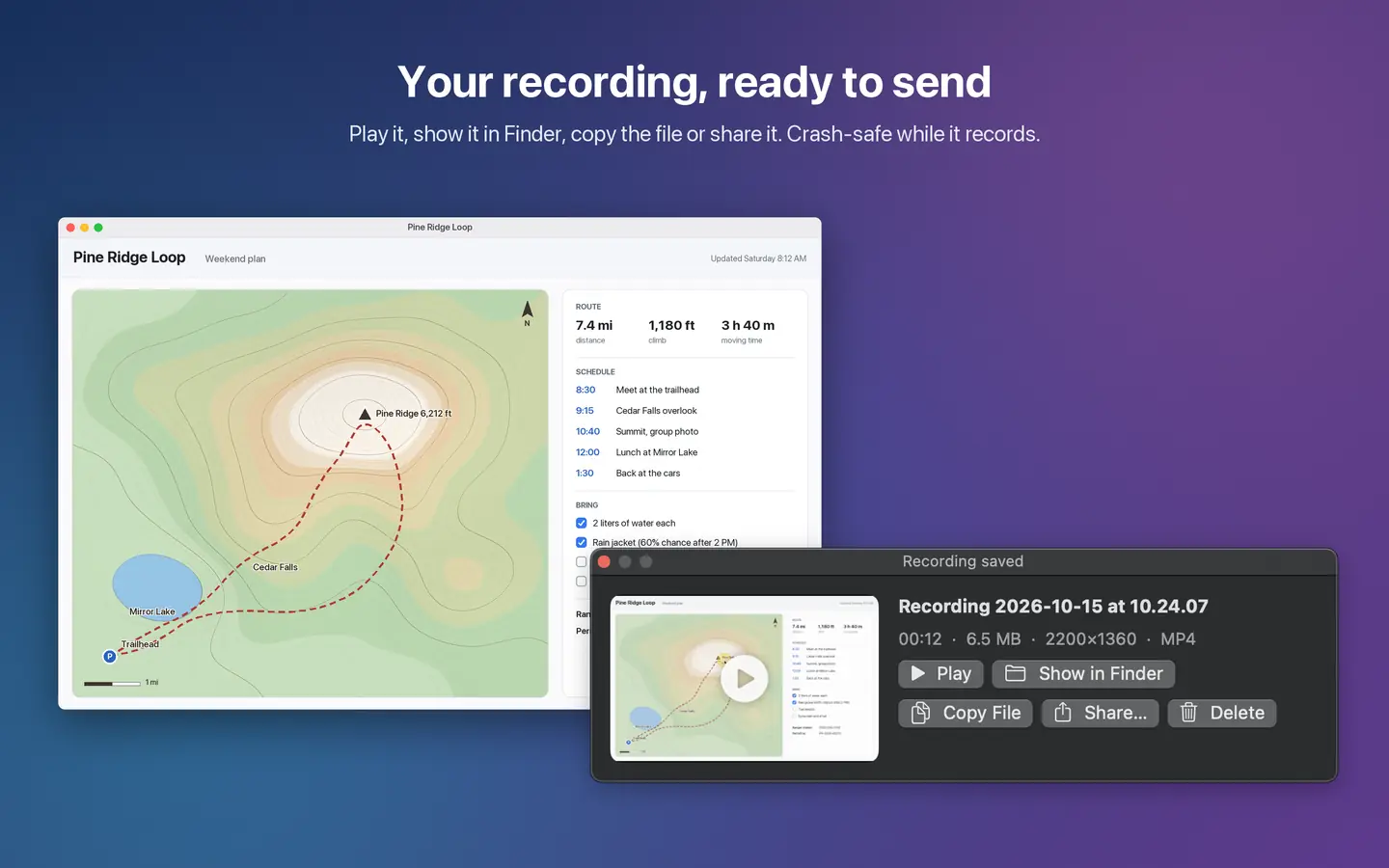
- When you stop, a panel offers Play, Show in Finder, Copy File, Share and Delete.
Your Pointer, Your Way
- In screenshots and recordings, hide the pointer, show it, or highlight it with a large halo.
- In recordings, a ring appears around the pointer each time you click, so viewers can follow along.
Recordings That Survive A Crash
- Video is written to disk as it records. If the app quits unexpectedly or the Mac loses power, the recording up to that moment is kept.
- The next time you open the app, it finishes any interrupted recording into a normal video file and tells you.
Quick To Reach
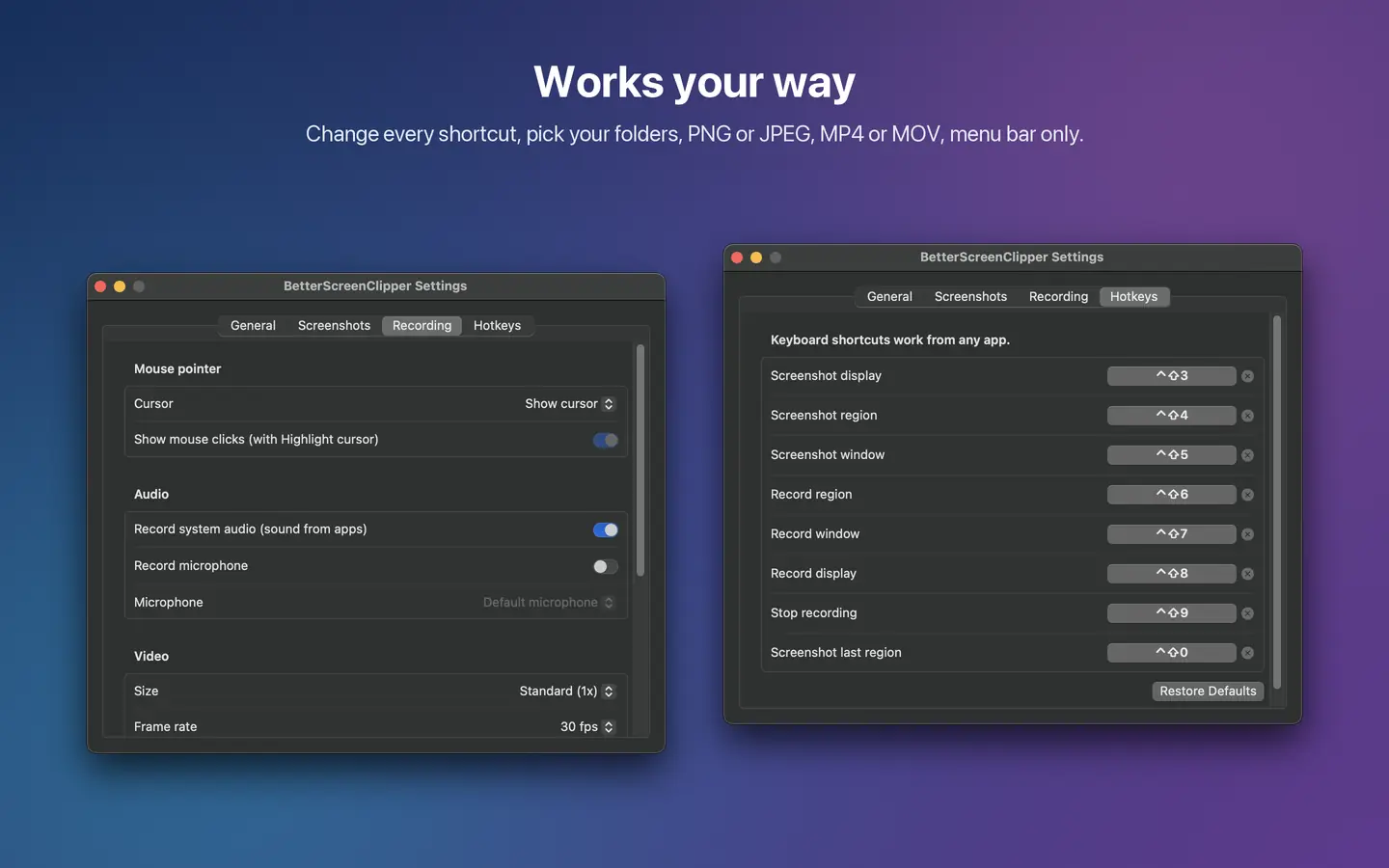
- Keyboard shortcuts that work from any app, and you can change them:
- Control-Shift-3 screenshot a display
- Control-Shift-4 screenshot a region
- Control-Shift-5 screenshot a window
- Control-Shift-6 record a region
- Control-Shift-7 record a window
- Control-Shift-8 record a display
- Control-Shift-9 stop recording
- Control-Shift-0 screenshot the last region again
- A menu bar icon with every capture action; it shows a red dot and the elapsed time while you record.
- A compact control panel, or run from the menu bar only.
Private By Design
- No account, no sign-in, no subscription.
- No analytics and no internet connection. Your screenshots and recordings stay on your Mac, in your Pictures and Movies folders, until you choose to share them.
Requires macOS 15 or later. Screen recording needs the Screen & System Audio Recording permission, and voice recording needs the Microphone permission. The app shows you exactly where to turn these on.
What’s New
Version 1.0
First release of BetterScreenClipper: screenshots with markup, screen recording with sound, and crash-safe recordings.
Information
- Seller
- Fringe Industries, LLC
- Price
- $9.99
- Category
- Productivity
- Requires
- macOS 15 or later
- Runs on
- Intel and Apple silicon Macs
- Age rating
- 4+
Support
Questions or feedback? Visit BetterScreenClipper Support or email help@myfringeindustries.com.